设置线程
在深入阅读本内容之前,可能需要先阅读以下内容:
许多大型语言模型(LLM)应用都采用类似聊天机器人的界面,用户与LLM应用之间可进行多轮对话。为了跟踪这些对话,您可以在LangSmith中使用Threads功能。
将追踪记录分组为线程
一个 Thread 是表示单次对话的一系列追踪记录。每个响应都以其自身的追踪记录表示,但这些追踪记录通过属于同一条对话线程而相互关联。
要将追踪信息关联在一起,您需要传入一个特殊的 metadata 键,其值为该线程的唯一标识符。
键值是该对话的唯一标识符。 键名称应为以下之一:
session_idthread_idconversation_id.
该值可以是任意字符串,但我们建议使用 UUID,例如 f47ac10b-58cc-4372-a567-0e02b2c3d479。
代码示例
此示例演示了如何将对话历史记录到 LangSmith 并从中检索,以维持长时间运行的聊天会话。
您可以通过多种方式在 LangSmith 中为追踪记录添加元数据,本示例代码将展示如何动态添加元数据;但请阅读之前链接的指南,以了解所有为追踪记录添加线程标识符元数据的方法。
- Python
- TypeScript
import openai
from langsmith import traceable
from langsmith import Client
import langsmith as ls
from langsmith.wrappers import wrap_openai

client = wrap_openai(openai.Client())
langsmith_client = Client()

# Config used for this example

langsmith_project = "project-with-threads"


session_id = "thread-id-1"


langsmith_extra={"project_name": langsmith_project, "metadata":{"session_id": session_id}}

# gets a history of all LLM calls in the thread to construct conversation history

def get_thread_history(thread_id: str, project_name: str): # Filter runs by the specific thread and project
filter_string = f'and(in(metadata_key, ["session_id","conversation_id","thread_id"]), eq(metadata_value, "{thread_id}"))' # Only grab the LLM runs
runs = [r for r in langsmith_client.list_runs(project_name=project_name, filter=filter_string, run_type="llm")]

  # Sort by start time to get the most recent interaction
  runs = sorted(runs, key=lambda run: run.start_time, reverse=True)
  # The current state of the conversation
  return runs[0].inputs['messages'] + [runs[0].outputs['choices'][0]['message']]

# if an existing conversation is continued, this function looks up the current run’s metadata to get the session_id, calls get_thread_history, and appends the new user question before making a call to the chat model

@traceable(name="Chat Bot")
def chat_pipeline(question: str, get_chat_history: bool = False): # Whether to continue an existing thread or start a new one
if get_chat_history:
run_tree = ls.get_current_run_tree()
messages = get_thread_history(run_tree.extra["metadata"]["session_id"],run_tree.session_name) + [{"role": "user", "content": question}]
else:
messages = [{"role": "user", "content": question}]

  # Invoke the model
  chat_completion = client.chat.completions.create(
      model="gpt-4o-mini", messages=messages
  )
  return chat_completion.choices[0].message.content

# Start the conversation

chat_pipeline("Hi, my name is Bob", langsmith_extra=langsmith_extra)
import OpenAI from "openai";
import { traceable, getCurrentRunTree } from "langsmith/traceable";
import { Client } from "langsmith";
import { wrapOpenAI } from "langsmith/wrappers";

// Config used for this example
const langsmithProject = "project-with-threads";
const threadId = "thread-id-1";

const client = wrapOpenAI(new OpenAI(), {
project_name: langsmithProject,
metadata: { session_id: threadId }
});
const langsmithClient = new Client();

async function getThreadHistory(threadId: string, projectName: string) {
// Filter runs by the specific thread and project
const filterString = `and(in(metadata_key, ["session_id","conversation_id","thread_id"]), eq(metadata_value, "${threadId}"))`;

// Only grab the LLM runs
const runs = langsmithClient.listRuns({
projectName: projectName,
filter: filterString,
runType: "llm"
});

// Sort by start time to get the most recent interaction
const runsArray = [];
for await (const run of runs) {
runsArray.push(run);
}
const sortedRuns = runsArray.sort((a, b) =>
new Date(b.start_time).getTime() - new Date(a.start_time).getTime()
);

// The current state of the conversation
return [
...sortedRuns[0].inputs.messages,
sortedRuns[0].outputs.choices[0].message
];
}

const chatPipeline = traceable(
async (
question: string,
options: {
getChatHistory?: boolean;
} = {}
) => {
const {
getChatHistory = false,
} = options;

  let messages = [];
  // Whether to continue an existing thread or start a new one
  if (getChatHistory) {
    const runTree = await getCurrentRunTree();
    const historicalMessages = await getThreadHistory(
      runTree.extra.metadata.session_id,
      runTree.project_name
    );
    messages = [
      ...historicalMessages,
      { role:"user", content: question }
    ];
  } else {
    messages = [{ role:"user", content: question }];
  }

  // Invoke the model
  const chatCompletion = await client.chat.completions.create({
    model: "gpt-4o-mini",
    messages: messages
  });
  return chatCompletion.choices[0].message.content;

},
{
name: "Chat Bot",
project_name: langsmithProject,
metadata: { session_id: threadId }
}
);

// Start the conversation
await chatPipeline("Hi, my name is Bob");
等待几秒钟后,您可以发起以下调用来继续对话。通过传入 getChatHistory: true,
即可从上次中断的位置继续对话。这意味着大语言模型(LLM)将接收到完整的消息历史记录并据此生成回复,
而不仅仅是针对最新一条消息进行回复。
- Python
- TypeScript
# Continue the conversation (WAIT A FEW SECONDS BEFORE RUNNING THIS SO THE FRIST TRACE CAN BE INGESTED)
chat_pipeline("What is my name?", get_chat_history=True, langsmith_extra=langsmith_extra)

# Keep the conversation going (WAIT A FEW SECONDS BEFORE RUNNING THIS SO THE PREVIOUS TRACE CAN BE INGESTED)

chat_pipeline("What was the first message I sent you", get_chat_history=True, langsmith_extra=langsmith_extra)
// Continue the conversation (WAIT A FEW SECONDS BEFORE RUNNING THIS SO THE FRIST TRACE CAN BE INGESTED)
await chatPipeline("What is my name?", { getChatHistory: true });

// Keep the conversation going (WAIT A FEW SECONDS BEFORE RUNNING THIS SO THE PREVIOUS TRACE CAN BE INGESTED)
await chatPipeline("What was the first message I sent you", { getChatHistory: true });
查看对话历史
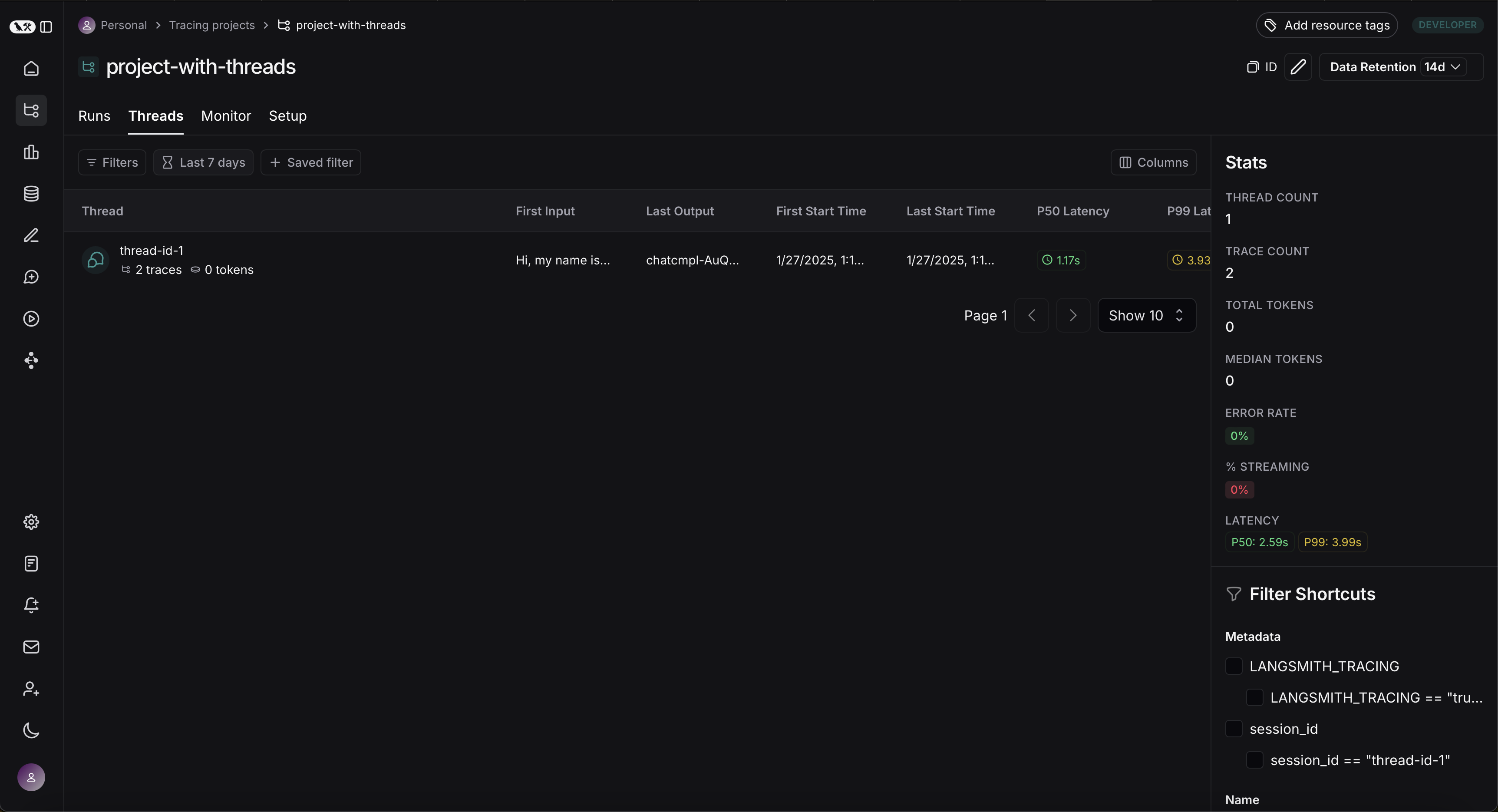
您可以通过点击任意项目详情页面中的 Threads 标签页来查看会话列表。随后,您将看到按最近活动时间排序的所有会话列表。
然后,您可以点击某个特定的对话线程。这将打开该对话线程的历史记录。如果您的对话线程是以聊天消息格式组织的,您将看到一个类似聊天机器人的用户界面,其中可以查看输入与输出的历史记录。
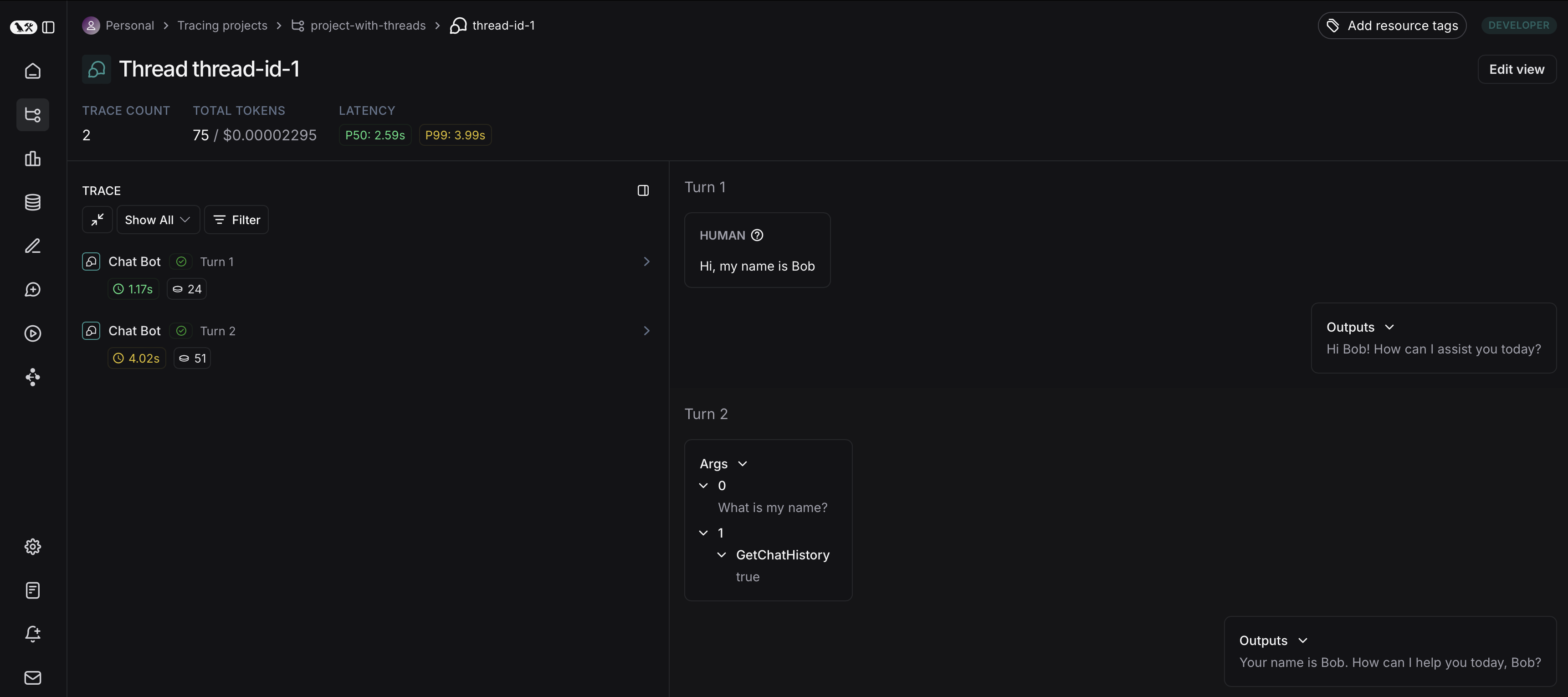
您可以点击 Annotate 打开追踪信息,或点击 Open trace 在侧边面板中对追踪信息进行标注。